
Get Started with Sandbox
To get started integrating with the Blue Button API, you’ll need to register a sandbox application. You don’t need a working application at this point, but you need to define basic settings to generate client credentials for testing purposes.
Visit the Sandbox1. Register an application in the developer sandbox
- Go to the Sandbox Dashboard. (If you don’t already have an account, create one.)
- Click Add an Application.
2. Enter application details
When you add or edit a sandbox application, you’ll enter various required configuration details.
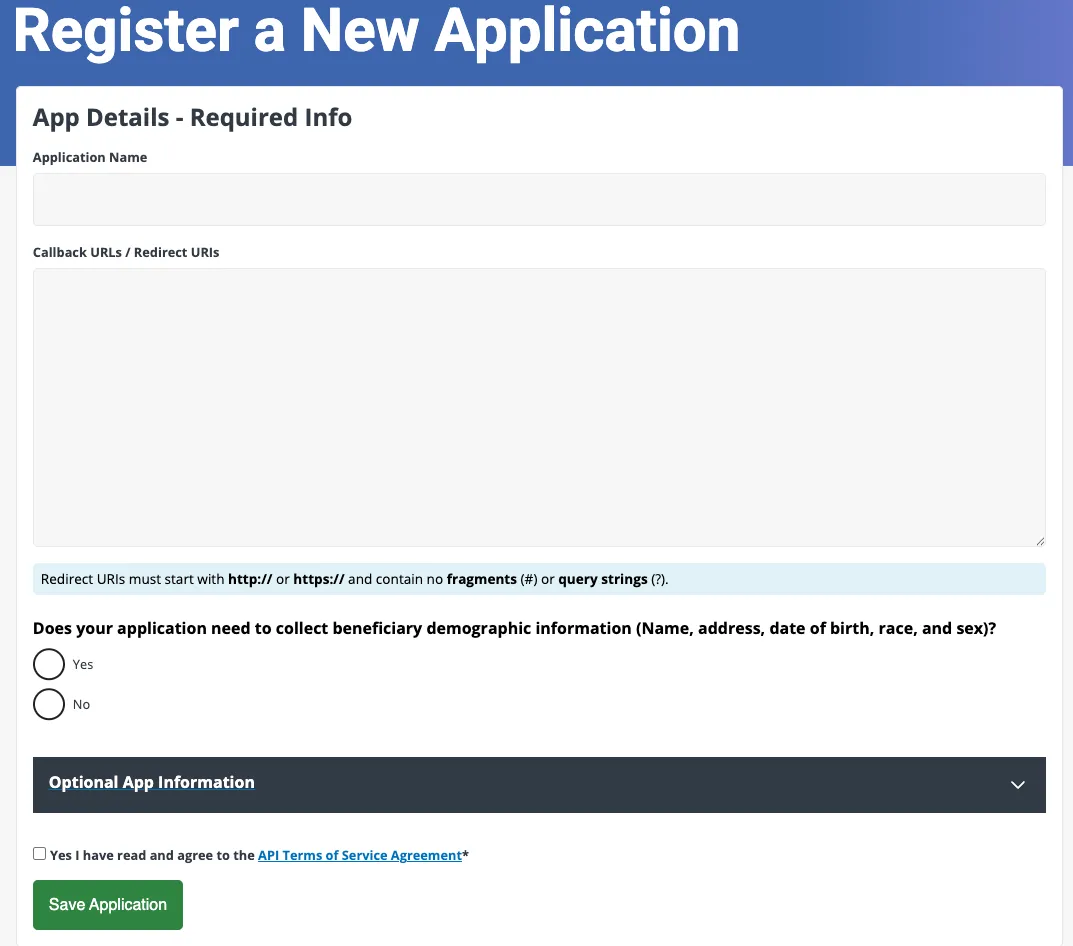
Application Name
The name of your sandbox application.
OAuth Client Type
The Blue Button API only supports confidential client type.
Authorization Grant Type
The Blue Button API only supports the authorization code grant type. An authorization code is a random string generated by the authorization server and returned to the application as part of the authorization response.
Callback URLs / Redirect URIs
This is an API endpoint on your system that receives the callback after a user successfully authorizes your application to access their Medicare data. To enter multiple URIs in the Callback URLs / Redirect URIs field, separate each entry with a space or new line.
Sample format:
URIscheme://[sub-domain.]domain_name[:port]/pathDoes my application need to collect enrollee demographic data?
This setting determines 2 things:
- What scopes are applied to your application (determines which API calls your application can execute).
- The information and options displayed on the authorization screen Medicare enrollees use to allow or deny your application access to their data
| Setting | Description |
|---|---|
| Yes | Allows your application to request access to a Medicare enrollee’s claims data AND personal information such as name, date of birth, race, and sex. (Scopes: Note: When an enrollee is authorizing your application, they will have the ability to omit the patient/Patient.rs scope. Be sure that you build your application accordingly to handle a 403 error if an enrollee decides to filter their demographic information. 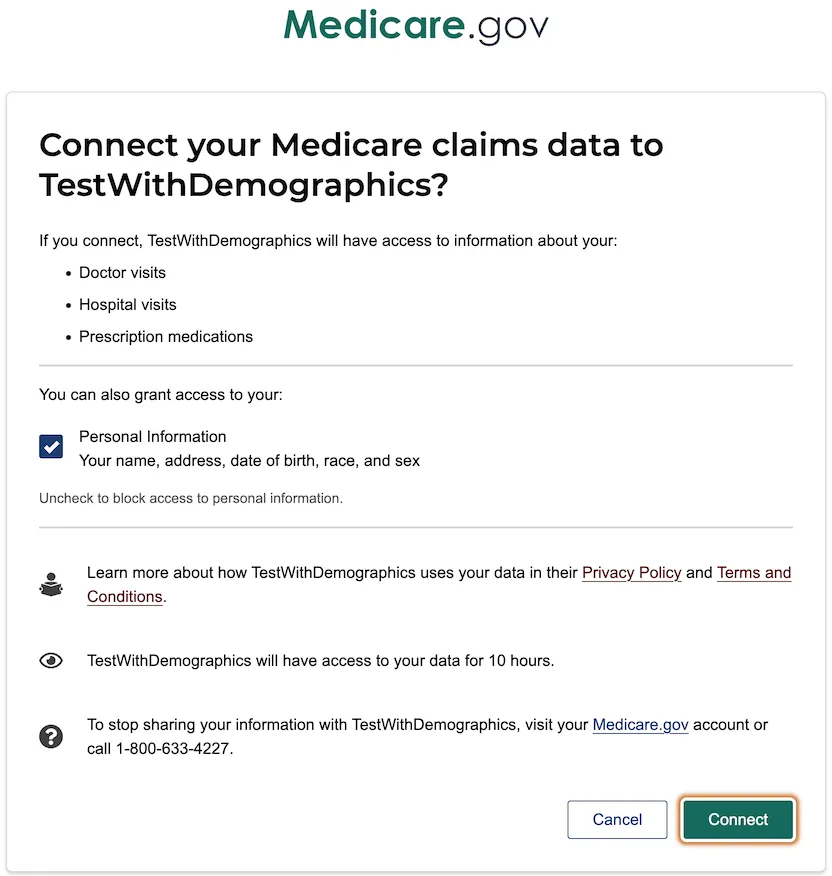 |
| No | Allows your application to request access to the 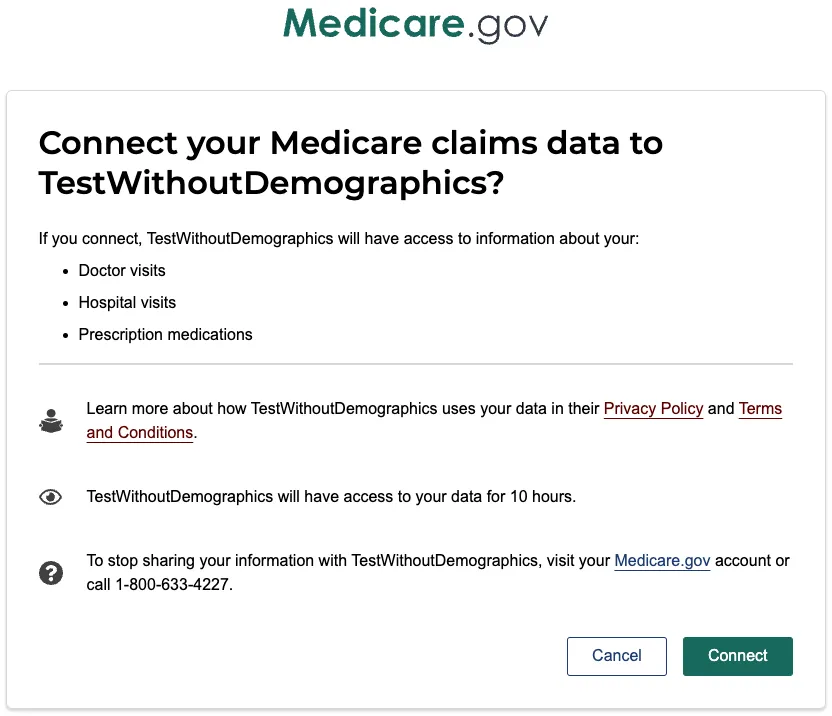 |
To learn more about scopes and permissions, visit Authorization.
3. Save your application
Click Save Application.
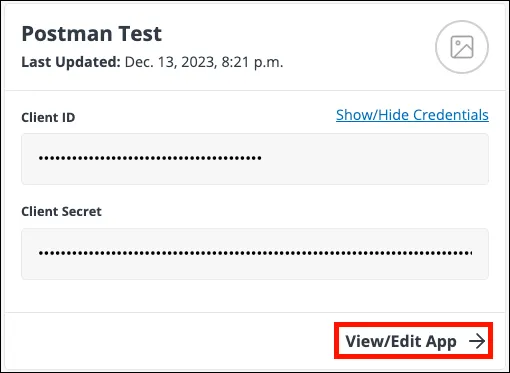
After you register your sandbox application, you’ll get a Client ID and Client Secret.
- Client ID: an alphanumeric string used to identify your application. Use this in your code when you call the Blue Button API.
- Client Secret: an alphanumeric string used by your application to authenticate with the Blue Button server.
Note: Client credentials from the developer sandbox only work in the sandbox environment. To get production credentials, you need to complete the production access requirements and be approved.
4. Test the API with Postman or cURL
Once you’ve created a Blue Button sandbox application, you can start making requests. The instructions in this section will get you up and running quickly with Postman or cURL.
Postman
Postman is a widely used API client. To start making Blue Button API sandbox calls in Postman, follow the steps shown below.
-
Configure your Sandbox application to work with Postman:
-
Log into the Blue Button Sandbox.
-
Click View/Edit App for the app you want to use with Postman.
-
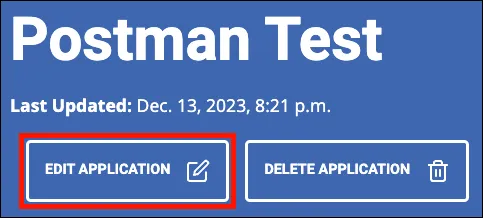
Click Edit Application.
-
Enter the following URLs into the Callback URLs / Redirect URIs field, separated by a carriage return.
https://oauth.pstmn.io/v1/callbackhttps://oauth.pstmn.io/v1/browser-callback -
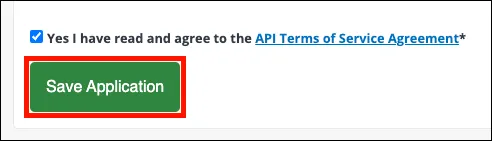
Click Save Application.
-
-
Download the Blue Button API Sandbox Postman collection and import it into the Postman desktop or web application.
- To import the collection, either click the Import button in Postman and select the collection file, or drag the file into the Postman window.
-
Select the top-level folder in the collection, CMS Blue Button API Sandbox.
-
Select the Variables tab.
-
Copy your application’s Client ID and Client Secret from your Sandbox account into both the Initial Value and Current Value cells for the corresponding Postman variables,
clientIdandclientSecret. -
After copying and pasting your API credentials, log out of the Blue Button sandbox in your browser. Being logged into the sandbox can cause errors during authorization in Postman.

-
Select the Auth tab.
-
Verify the following settings:
- Grant type: Authorization Code (With PKCE)
- Code Challenge Method: SHA-256
- State:
example_string_goes_here(this value can be any opaque string value at least 16 characters in length)
-
At the bottom of the Auth tab, click Get New Access Token.
-
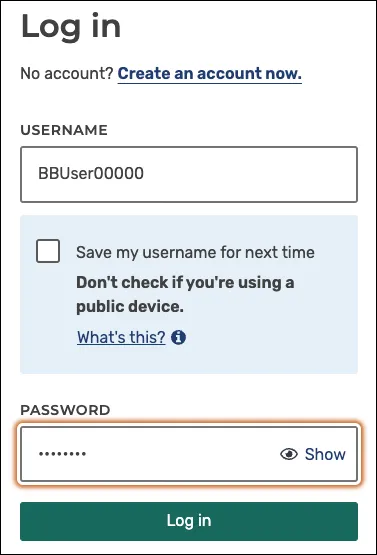
A Medicare.gov login window will open. Enter the username and password for a synthetic sandbox user account (e.g., user = “BBUser00000” and password = “PW00000!”), and click Log in.
-
Click Connect.

-
When the Manage Access Tokens window appears, click Use Token. You may also give your token a name.
-
Make any desired Blue Button API calls from the endpoints listed under the Patient, Explanation of Benefit, and Coverage folders. For example, to retrieve explanation of benefits information for the authenticated patient:
- Select the Explanation of Benefits folder, then GET Search Explanation of Benefits.
- Click Send.
- The API will return a FHIR bundle with explanation of benefits information.
cURL
You can also call the Blue Button sandbox with cURL, a popular command-line HTTP client.
First, obtain an access token. To test using your sandbox application, you can use Postman to retrieve a token with your client ID and secret, as shown in the previous section. Alternately, you can get a sample authorization token from the Blue Button Test Client as shown in the following steps:
-
Navigate to the Blue Button API Test Client.
-
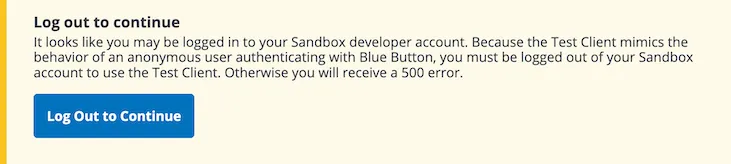
If you are currently logged into the Blue Button sandbox, click Log Out to Continue.
-
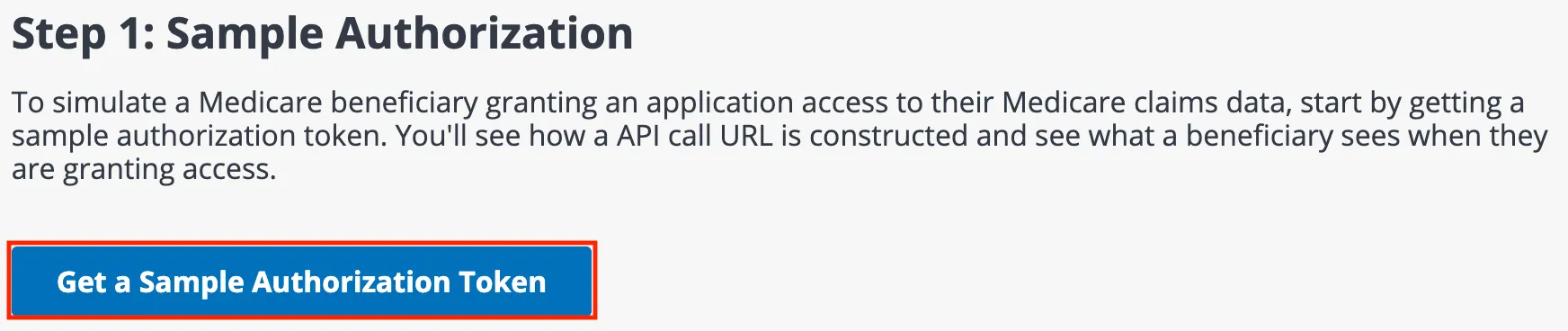
Click Get a Sample Authorization Token.
-
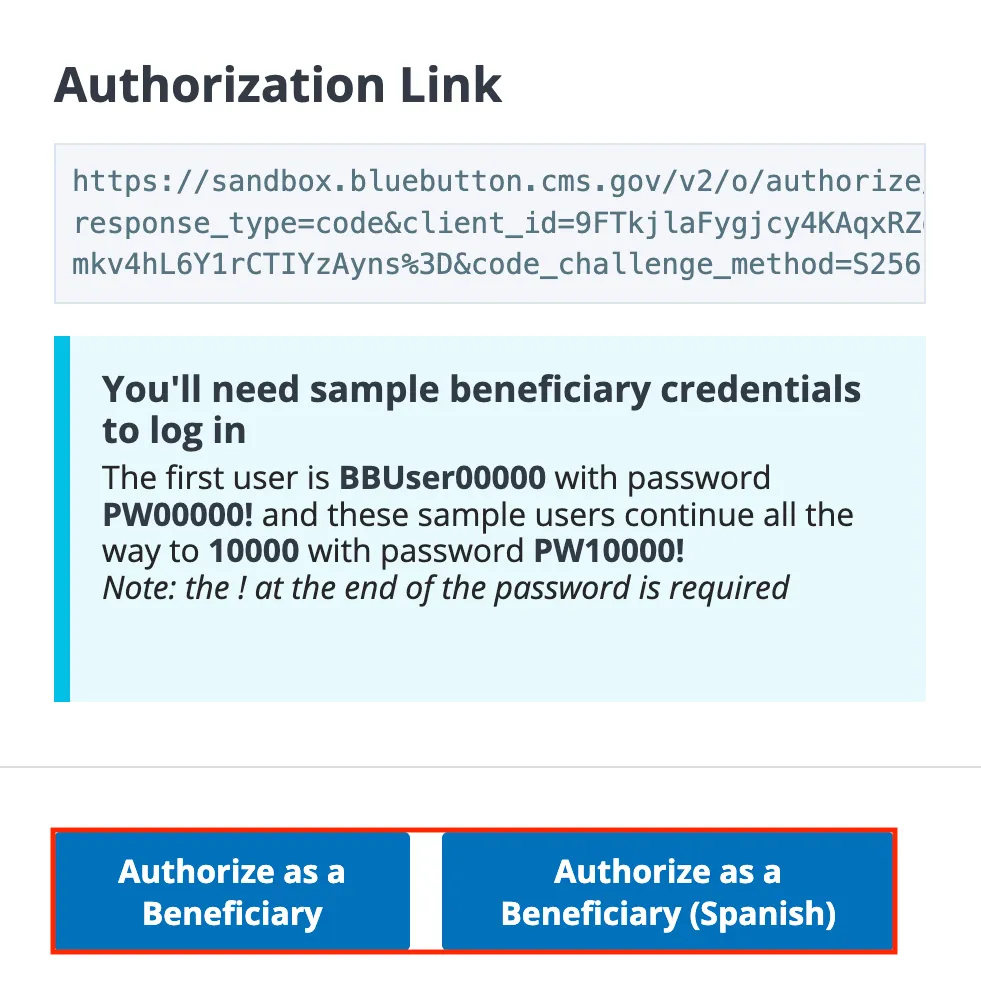
Click Authorize as a Beneficiary.
-
A Medicare login screen will open. Enter the username and password for a synthetic sandbox user account (e.g., user =
BBUser00000and password =PW00000!), and click Log in. -
Click Connect.
-
A new page will open. Copy the access token from the JSON shown under Step 1: Sample Authorization for use in your cURL command.

Once you have an access token, you can start making API calls with cURL. For example, the following command will retrieve explanation of benefit information for the authenticated patient (replace <YOUR ACCESS TOKEN> with your actual access token):
curl --location "https://sandbox.bluebutton.cms.gov/v2/fhir/ExplanationOfBenefit/" \ --header "Accept: application/json" \ --header "Authorization: Bearer <YOUR ACCESS TOKEN>"5. Next steps
If you’re ready to start building, check out our Sample Applications or SDKs:
SDKs
Our SDKs provide a comprehensive set of tools to help you build applications faster and in a more standardized way. The SDKs are available for Node and Python.
Sample Apps
Our sample applications provide examples of basic use of the Blue Button API.